Getting started with a new tool is one thing. Building habits across two that connect your planning and communication is another.
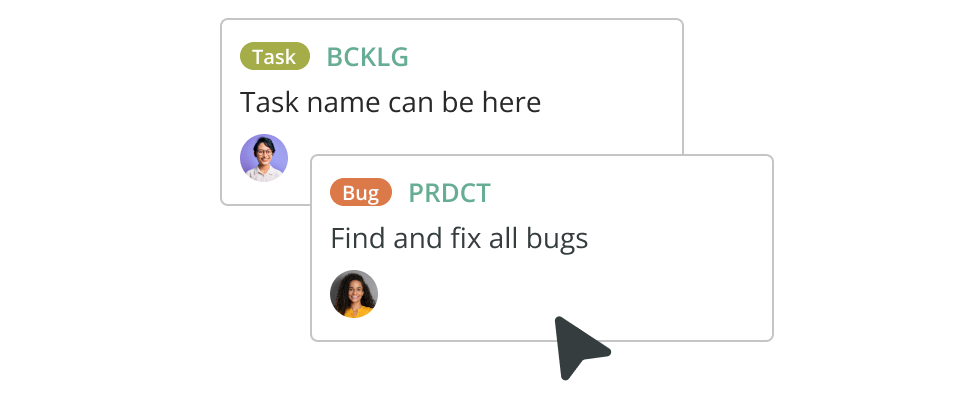
This 30-day learning path is designed to help you and your team get comfortable with both Backlog and Cacoo as connected parts of a shared workflow.
By the end of your first month, you’ll know how to plan projects, collaborate visually, track progress, and keep feedback organized across both tools.
Overview & goals of the 30-day path
Before diving into daily steps, it’s helpful to define the purpose and guiding principles of the 30-day plan:
- You want your team to meaningfully incorporate Backlog (for project / issue tracking) and Cacoo (for boards workflows, visual planning) into day-to-day work.
- The path should build from basic orientation to team setup and simple use to process integration and deeper use / customization.
- You should cross-link Backlog and Cacoo (e.g. embed boards, use visual planning in issue workflows).
- Use Nulab’s official tutorials and support content as the basis for all training/reference material.
- At the end of 30 days, the team should feel confident creating projects, issues, visual boards, embedding boards into work, customizing workflows, and scaling usage.
Below is a suggested breakdown by week and day (or cluster of days) with recommended guidance.
Week 1-2: Setup, orientation, basic navigation
Day 1: Kickoff & account setup
- Sign up for a Backlog free trial (30 days) if not already.
- Likewise, make sure you have access to Cacoo (if part of your plan) via the same Nulab organization / account. (Cacoo also offers a free trial, and is part of the Nulab product suite and integrates with Backlog.)
- If you have an existing Backlog or Cacoo organization, follow the “Getting started for existing Backlog and Cacoo organization” guide for admins: add users, choose teams, assign access.
- Invite your core team (e.g. product, dev, design) to the Nulab organization and assign them roles.
- As admin, ensure everyone is aware of the shared account / SSO access.
Day 2: Backlog orientation
- Walk the team through Backlog dashboard: when you log in, this is your home: view projects, issues, recent updates, global nav, etc.
- Show the global navigation bar (top): where to access projects, saved filters, issues, members, etc.
- Introduce the four “drawers” (Projects, Pull requests, My issues, Recent updates) in the dashboard.
- Ask each team member to explore the dashboard and pin a few projects they expect to use.
Day 3: Backlog — core features
- Use the Backlog “Project Setup Tutorials” to walk through creating a first project, enabling core settings (attributes, issue types, statuses).
- In the project:
- Create parent issues and subtasks, assign them, set start/due dates, priority, etc.
- Demonstrate how to move tasks/issue statuses as work progresses (To Do → In Progress → Closed).
- Introduce views: use a Kanban board in Backlog, and Gantt charts to visualize timeline / dependencies.
- Encourage the team to try creating at least 5 sample issues (parent + child) for a small pilot project.
Day 4: Backlog — customizing and documentation
- Show how to enable the Documents feature in a project. Go to Project Settings → Basic Settings → enable Documents.
- Demonstrate creating, editing, hierarchical structuring of documents in Backlog, including slash commands and collaborative editing.
- If relevant, show how to use Wiki in Backlog: create a wiki in a project, use Markdown or Backlog notation, add pages.
- As a team, draft a “getting started” or process doc in Backlog’s Documents or wiki (e.g. team norms, definitions, etc.)
Day 5: Cacoo orientation
- Walk through the Getting started with Cacoo guide: introducing dashboard, folders, boards, and sheets.
- Show how to create a new board:
- via “Create Board” button;
- via cacoo.new in browser;
- via template library.
- Once a board is open:
- Explain the Tools menu (on left) for shapes, icons, text, lines, sticky notes etc.
- Explain the Panel (right) for sheets, comments, video call, background/grid options.
- Explain Properties (bottom right) for undo/redo, history/activity, view options.
- Demonstrate editing objects, customizing styles, etc.
- Show how to share boards (via Share button), invite collaborators, set permissions.
- Ask the team to each create a simple board (e.g. flowchart of a process) and invite one collaborator to edit.
Day 6: Cacoo — sheets, organizing, import, export
- Show how to add / manage sheets (pages) within a board: add sheet, rename, duplicate, reorder, delete.
- Demonstrate how to import images / screenshots: from device, URL, third-party services (Google Drive, Dropbox, OneDrive, Box, Adobe) and Visio files.
- Show how to export boards: open the board, click “Export/Print” cloud icon, select export format (PNG for all plans; SVG, PDF, PS, PPT for paid plans).
- Discuss embedding or linking boards into external sites or wikis via embed code (if applicable).
- Encourage the team to import an image or screenshot into their existing board, and then export to PNG / PDF to test.
Day 7: Review
- Use this day to review where the team is, answer questions, and let slower adopters catch up.
- Ask each member to share one board and one Backlog issue they created, with short discussion on pain points.
- Prepare “cheat sheet” links (Backlog video tutorials, Cacoo documentation) for team reference: for Backlog, refer to “Video tutorials” (e.g., Getting started, inviting users, customizing attributes, collaborating).
Week 2-3: Basic workflows and linking Backlog & Cacoo
Days 8–9: Define a pilot project in Backlog
- Choose a small pilot project (e.g. internal tool, a process improvement) that all team members can contribute to.
- In Backlog:
- Define the product backlog, using parent/child issues, epics, or milestones.
- Prioritize backlog items (consider customer need, dependencies,and difficulty).
- Use either the Kanban or Scrum approach, depending on your team.
- Create a Milestone / release plan in Backlog for your pilot, and assign appropriate tasks.
Day 10: Learn how to collaborate in Backlog
- Show how team members can comment on issues, mention others using @username to request reviews, or flag dependencies. (Our project guide has tips.)
- Encourage the use of subtasks (bugs, QA tasks) under parent tasks to break down work.
- Demonstrate using issue templates for consistency (e.g. for bugs, enhancements).
Day 11: Link Cacoo boards into Backlog
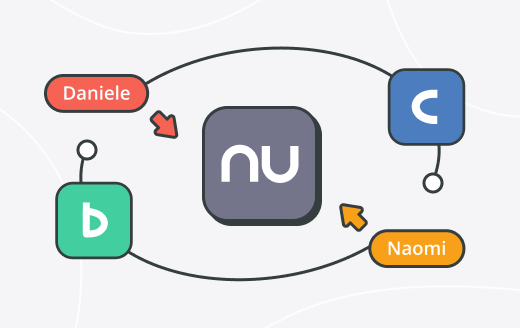
- Explain how Backlog and Cacoo integrate: users can access Cacoo via the “nu” icon on the global navigation bar.
- Show how to share boards via link and paste them into Backlog issues, comments, wikis. The board will render in the context in Backlog.
- Ask the team to embed at least one board into one issue or wiki page for the pilot project (e.g. process flow, architecture).
Day 12: Plan sprints (if using Scrum) or manage Backlog flow (Kanban)
- If using Scrum: define sprint duration, plan a sprint, move items into the sprint, and manage status flow. Use Backlog’s board or issue list.
- If using Kanban: define your columns / statuses and use drag & drop to progress tasks.
- Revisit priorities as needed.
Day 13: Visual planning in Cacoo
- For your pilot, pick a module or process that benefits from a board (e.g. user flow, system architecture, onboarding flow).
- Use Cacoo to diagram it, leveraging shapes, lines, text, comments, and collaborate live.
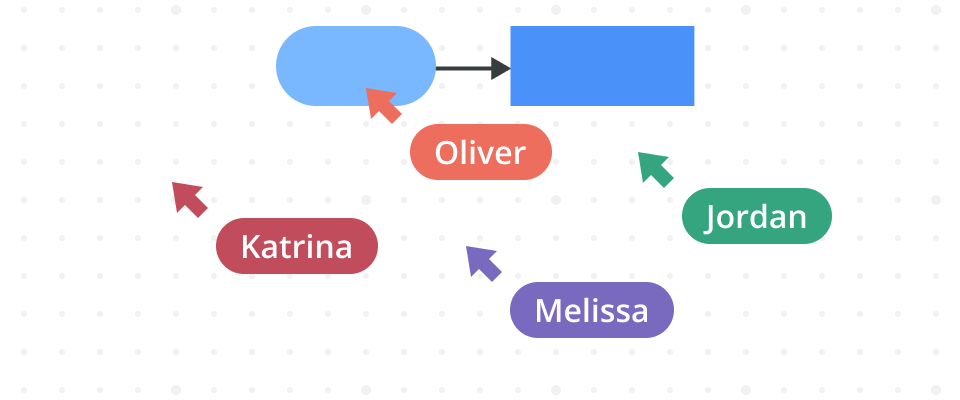
- Invite team members to coedit the board in real time.
Day 14: Reflection, feedback, iterate
- Collect feedback: What’s working? What’s confusing?
- Adjust the pilot workflows (issue structure, statuses, board embedding) based on team feedback.
- Schedule a mini retrospective about tool usage.
Week 3-4: Intermediate usage, customization, scaling
Day 15: Deep dive into Backlog custom fields, status, templates
- Use Backlog’s project setup tutorials to further customize issue attributes: add or modify issue types, statuses, custom fields, and templates.
- Adjust statuses (e.g. adding “Testing”, “Test Failed”) for quality workflows if relevant.
- Encourage teams to define which fields are mandatory for consistency (e.g., priority, estimated hours, due date).
Day 16: Advanced Backlog views/reports
- Teach how to use Backlog’s Gantt chart to visually see timelines and dependencies.
- Use burndown charts if working in sprints (Backlog supports it).
- Show filtering, saved searches, and batch update of issues. (Refer to Backlog’s video tutorials for additional support.)
Day 17: Cacoo: embedding, public sharing, security
- Demonstrate public link / public sharing of boards:
- Open a board → “Share” → enable Public sharing → copy link.
- Set permissions (view/edit) for the public link.
- If the organization allows, set a password and expiration on public links.
- Cover security / privacy for boards: Cacoo uses HTTPS, data is private unless shared, backups, etc.
Day 18: Cacoo keyboard shortcuts & efficiency
- Show the Cacoo 101 keyboard shortcuts guide: open via Help icon or Ctrl + / (or ⌘ + / on Mac).
- Walk the team through important shortcuts (undo, redo, copy, paste, duplicate, zoom, select tools).
- Encourage members to try using shortcuts while editing boards for faster work.
Day 19: Manage boards lifecycle
- Explain how to archive / delete / restore boards:
- Hover over board in dashboard → “…” → Archive.
- To delete: must be archived first, then delete from archive section.
- To restore: go to archive → click restore icon or checkbox + “Restore.”
- Ask the team to archive an old or placeholder board, then restore it to test.
Day 20: Midpoint review and adjustments
- Hold a workshop to review how both tools are being used in the pilot project.
- Collect suggestions for improvement in structure, embedding, workflows
- Adjust the process or issue templates accordingly.
Day 21: Buffer / catch-up / internal training
- Use this day for internal office hours: let team members ask for help, pair program in Backlog or Cacoo, let slower users catch up.
- Create a knowledge base (in Backlog’s Documents or Wiki) that collects tips, FAQs, and internal guidelines for using Backlog + Cacoo.
Week 4 and beyond: advanced practice, scaling, governance & review
Day 22: Integration with external tools & automation (where applicable)
- Explore integrations Backlog offers (e.g. Git / SVN, Slack, etc.) as per Backlog’s features. (Backlog supports code management, integrations)
- For example: link commits / pull requests to Backlog issues. (Backlog supports code integration)
- Also explore Cacoo integration options or embedding boards into external tools (websites) via embed code.
Day 23: Advanced reporting, auditing, permissions
- Configure permissions / roles in Backlog: ensure appropriate access levels for members vs admins.
- For larger teams, consider controlling user roles and what they can do (project settings, issue type editing, etc.).
- Document regular reporting practices: set up dashboards or summary pages in Backlog Documents / wiki that surface key metrics (open issues, overdue tasks, board updates).
Day 24: Governance, archiving, cleanup
- For Backlog:
- Teach the team how to archive or close old projects (if applicable).
- Encourage periodic cleanup of stale issues or backlog grooming.
- For Cacoo:
- Review boards and archive unused ones.
- Enforce naming / folder conventions for boards / shared folders.
- Document governance policy: who can create new projects, boards, who archives, retention policy, etc.
Day 25: Final sprint / deliverable using combined tools
- Run a final mini-sprint or deliverable in the pilot project, where:
- All tasks are managed via Backlog.
- Keyboards (architecture, flow, UI wireframes) are made in Cacoo, embedded in backlog issues or docs.
- Use comments, @mentions, version tracking, subtasking, etc.
- Encourage the team to rely on the tools fully.
Day 26: Training/peer sharing
- Ask team members to present their favorite trick/usage (e.g., how they used boards, shortcuts, custom fields, embedding).
- Record a short internal video or walkthrough (with screen recording) that can be reused for new hires.
Day 27: Review, retrospective, improvements
- Run a retrospective:
- What’s working with Backlog?
- What’s working with Cacoo?
- What remains pain or friction?
- Adjust templates, workflows, board guidelines accordingly.
Day 28: Create a “future plan” / roadmap for adoption
- Using Backlog and Cacoo, plan broader rollout to other teams (marketing, operations, etc.) beyond pilot.
- Create issues in Backlog for rollout tasks and diagram the roadmap in Cacoo.
- Define metrics / success criteria (e.g. % of work tracked in Backlog, number of boards used, team satisfaction).
Days 29–30: Wrap-up, documentation handover, celebration
- Final check: ensure all team members have working accounts, know their role, know where to find help (video tutorials, support).
- Publish a “Team Handbook” or “Nulab usage guide” in Backlog Documents or wiki, summarizing do’s and don’ts, tips, shortcuts, governance.
- Celebrate the completion. Encourage continued use by assigning real work and inviting other teams to join.
Tips and best practices
- Start small, grow fast
Don’t try to record and track everything from day one. Pick one real project and use it to shape how your team uses Backlog and Cacoo in practice. Expand your repertoire once you’ve perfected the basics.
- Keep conversations close to the work
Use comments and @mentions in Backlog issues instead of talking elsewhere (although Backlog does integrate with other tools, including Slack, so feel free to chat there). It keeps files and decisions in one place, which saves time searching later.
- Create a lightweight “source of truth”
Keep a short team handbook in Backlog’s Documents or Wiki summarizing where to create issues, where to find boards, and who owns what. It’ll prevent process drift over time.
- Treat boards as living documents
Update your Cacoo boards as your project evolves instead of creating new ones every sprint. Embed the latest version directly in Backlog so everyone’s working from the same visual source of truth.
- Build a shared visual language
Agree on a few reusable Cacoo templates and shapes (for flows, wireframes, or systems). It keeps boards consistent across teams and saves hours of redrawing. It also helps new starters get up to speed quickly.
- Name things clearly and consistently
Use clear naming for projects, issues, and board folders, so anyone can find what they need fast. For example, use prefixes like “DEV_”, “OPS_”, or “MKT_” to keep things organized.
- Protect clarity as you scale, and review usage
As more teams join, revisit folder structures, access levels, and naming rules. Clear governance keeps tools helpful instead of chaotic. Take 30 minutes in retrospectives to ask: Are we using Backlog and Cacoo as well as we might? Does anything feel clunky? Small tweaks early stop habits from forming around workarounds.
About Author

Georgina Guthrie
Guest authorGeorgina is a displaced Brit currently working in France as a freelance copywriter. Before moving to sunnier climates, she worked as a B2B agency writer in Bristol, England, which is also where she was born. In her spare time, she enjoys old films and cooking (badly).